VICIdial call recordings: find, play and download any call
Find a VICIdial call recording by number, agent, outcome or date, play it in the browser, then download one, a zip of up to 500, or every call.

To the point
VICIdial call recordings in the Trustane console are on one page, Recordings:
- Find a call by the last digits of its number, a lead, an agent, a campaign, dates, outcome or length.
- Play it in the player bar and jump to any point.
- Download one recording, or tick up to 500 and download them as one zip.
- Export every match: the list as a CSV file and the audio in batches.
These screens are from our demo account, so every name and number shown is made up.
Where the recordings are
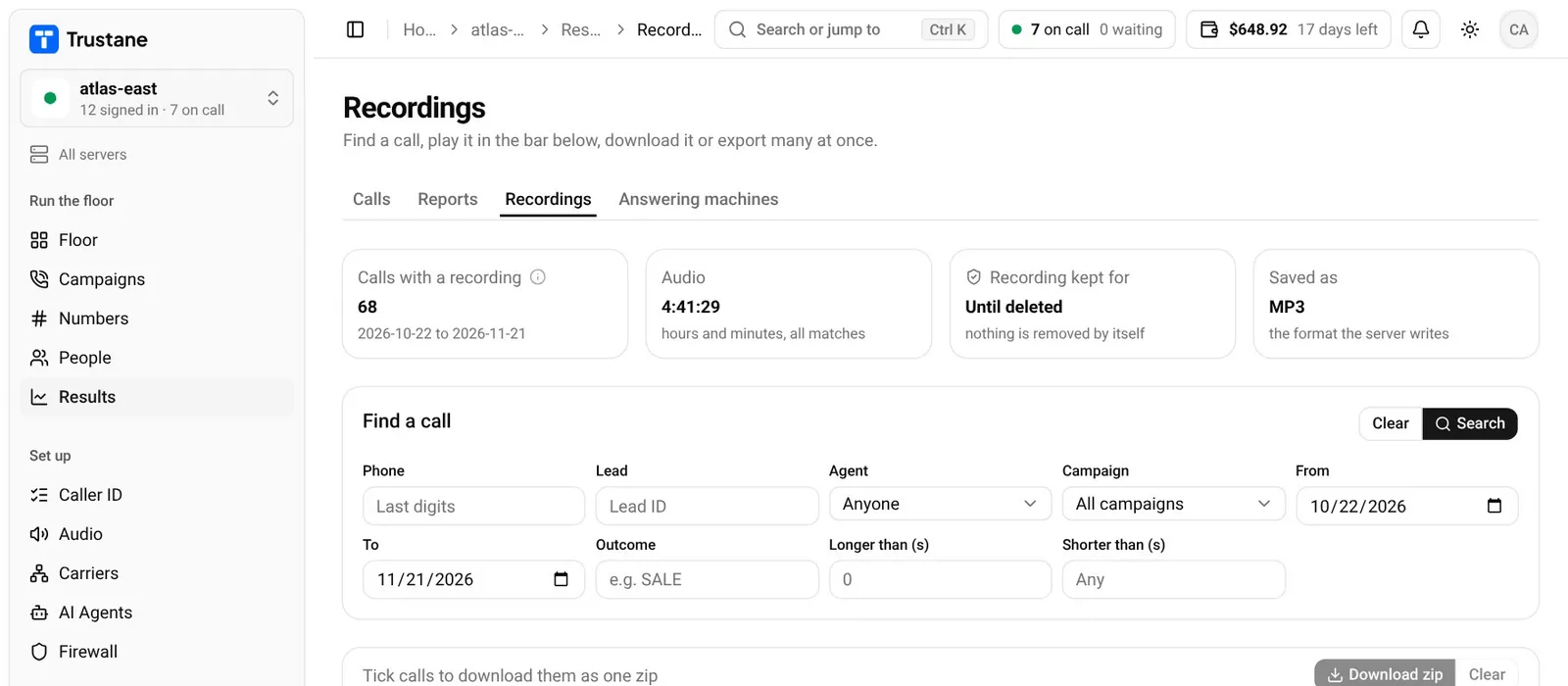
Open a server, then Results, then the Recordings tab. It sits beside Calls, Reports and Answering machines, so you can move from a report to the audio behind it without leaving the page.
The top of the page answers four questions before you search:
- Calls with a recording: how many calls in the chosen dates have one.
- Audio: the hours and minutes of all of them together.
- Recording kept for: how long the server keeps a recording before something deletes it, or Until deleted when nothing is scheduled to.
- Saved as: the format the server writes, such as MP3.
The last two are read from the server's own schedule of jobs, not from a setting typed into the console, so they show what the server actually does.
1. Find a call
Find a call has eight fields. Fill in any of them and press Search:
| Field | What it matches |
|---|---|
| Phone | The last digits of the number |
| Lead | One lead ID |
| Agent | One agent, picked from the server's users |
| Campaign | One campaign |
| From and To | A range of dates |
| Outcome | A status, such as SALE |
| Longer than, Shorter than | The call's length in seconds |
Results come newest first, 50 to a page. A number you type into the search is never put into the page's address, so it does not end up in a browser history or a shared link. The dates are, so a range can be bookmarked and shared.
Each row shows when the call was, the agent, the number with the lead's name, the outcome and the length. A row whose audio file is no longer on the server still appears, marked as such: the call is logged even when the file has gone.
2. Play it
Press Play on a row. The call opens in a player bar along the bottom of the page, and the results stay where they are.
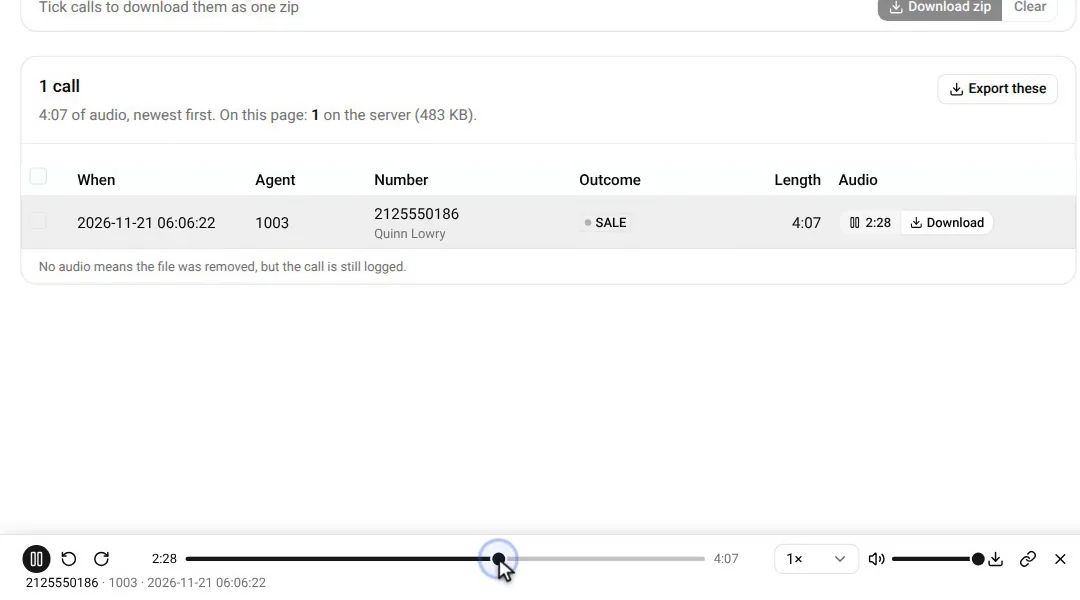
In the bar you can:
- drag along the line to jump to any point in the call;
- go back or forward 10 seconds;
- change the speed;
- download the file;
- copy a link to the call at the moment you are listening to;
- open the call itself, to see what happened before and after the recording.
To take a single recording with you, press Download on its row, or in the player bar while it plays.
3. Download many as one zip
Tick the calls you want. The box in the header ticks every call on the page. Your ticks stay while you go to the next page, change a filter or search again, so a selection can be built from several searches.
The bar above the results counts what you have ticked against the limit: up to 500 recordings and 2 GB in one zip. Press Download zip. The zip is built on the server, appears under the bar with its size, and is kept for 24 hours. Download it from there, or delete it sooner.
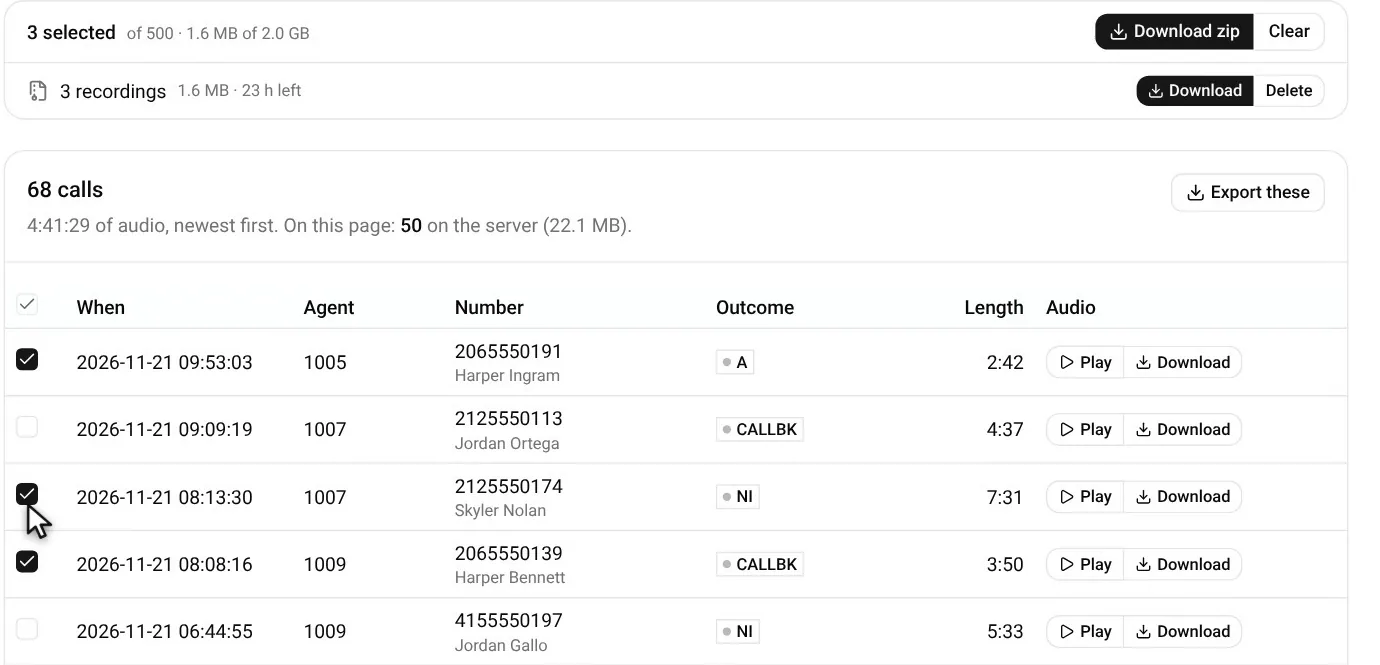
One zip is built at a time. While one is being built, the bar says so and names its server.
4. Export every match
When the job is everything, not a handful, press Export these. The export follows the search you have on screen, and it deletes nothing.
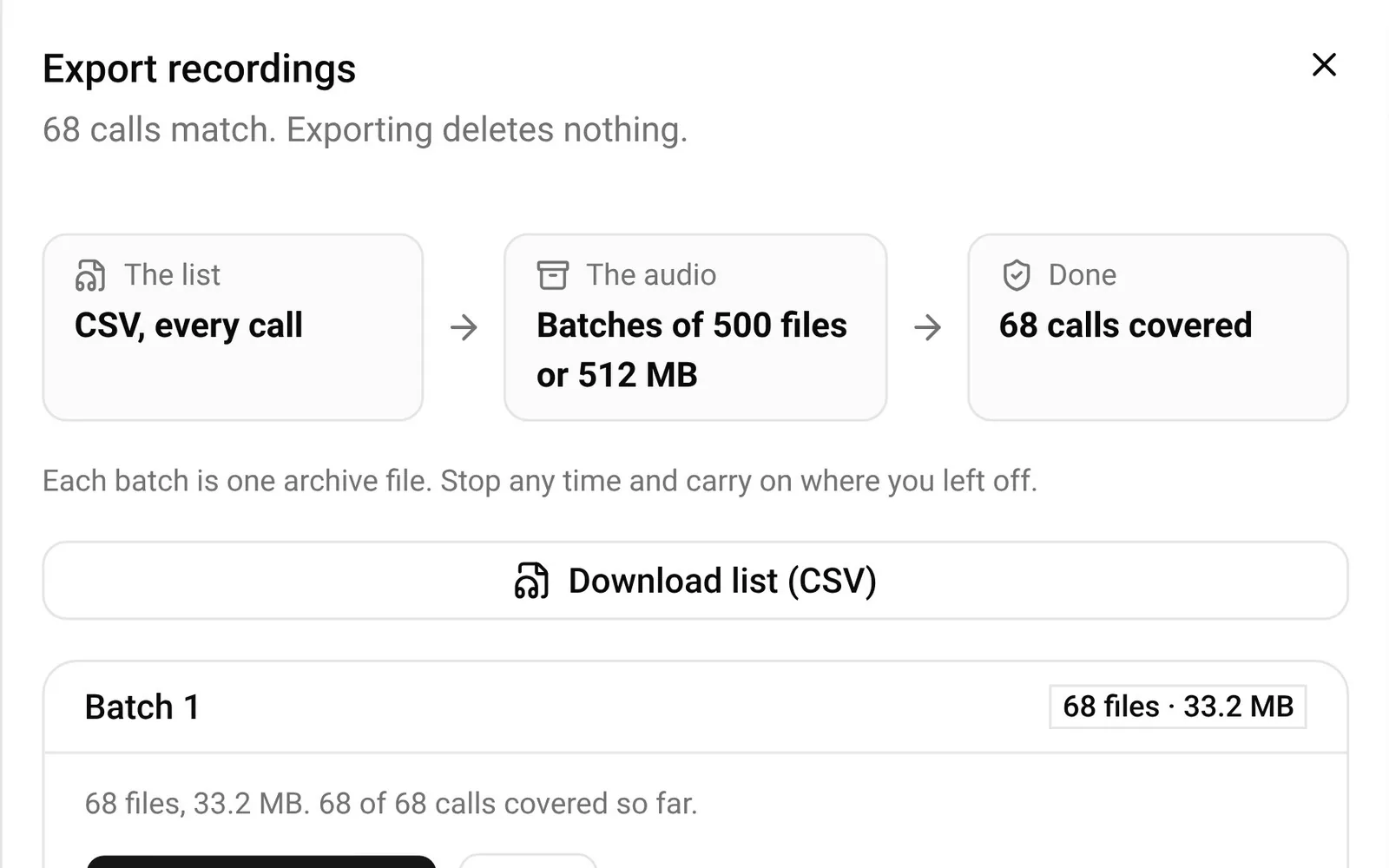
It comes in two parts:
- The list. A CSV file with a row for every matching call.
- The audio. Archives of up to 500 files or 512 MB each, whichever comes first.
Each batch is one archive file. You can stop after any batch and carry on later from where you left off, and the sheet counts how many of the matching calls the batches have covered so far. A single recording larger than 1 GB is named in the export and left out of the archive, so one oversized file cannot stall the rest.
Who can listen and who can download
Listening to a recording and downloading it are two separate rights in the console. A supervisor can play every call on the floor without being able to take files away. To set that up, read VICIdial team logins: a role and the right access for each person.
The four ways out, side by side
| You want | Use | Limit |
|---|---|---|
| One call | Download on its row or in the player bar | One file |
| A handful | Tick, then Download zip | 500 recordings, 2 GB, kept 24 hours |
| The list of calls | Export these, Download list (CSV) | Every match |
| Everything | Export these, the audio batches | 500 files or 512 MB a batch |
For where VICIdial itself keeps these files and what decides how long they stay, read where VICIdial keeps call recordings.
- Start free for 7 days and open Recordings on your own server.
- Or order a server and see your calls there from the first day.
VICIdial is a trademark of its owner. Trustane is an independent hosting provider.
Sources
- The Recordings page, its search and its grid
- The player bar
- The zip of ticked recordings
- Every limit on a search, a zip and an export
- How recordings are read from the server
Managed VICIdial hosting