VICIdial team logins: a role and the right access for each person
Give each person on your VICIdial team a console login of their own: invite by email, pick a role, tick rights one by one and limit people to some servers.

To the point
In the Trustane console, everyone on your team gets a login of their own:
- Invite a person by email from Account, then Team.
- Pick a role: owner, admin, support or read-only.
- Tick rights one by one when a role gives too much.
- Make teams to limit people to some servers.
These screens are from our demo account, so every name and address shown is made up.
Console logins and VICIdial users
Two kinds of login are involved, and they do different jobs. Your agents sign in to the agent screen with their VICIdial user, as before. The team logins on this page are for the console: the people who run the floor, read reports, look after carriers or pay the bills.
1. Invite someone
Open Account, then Team. The People tab lists everyone who signs in to the account, with their role and when they last signed in.
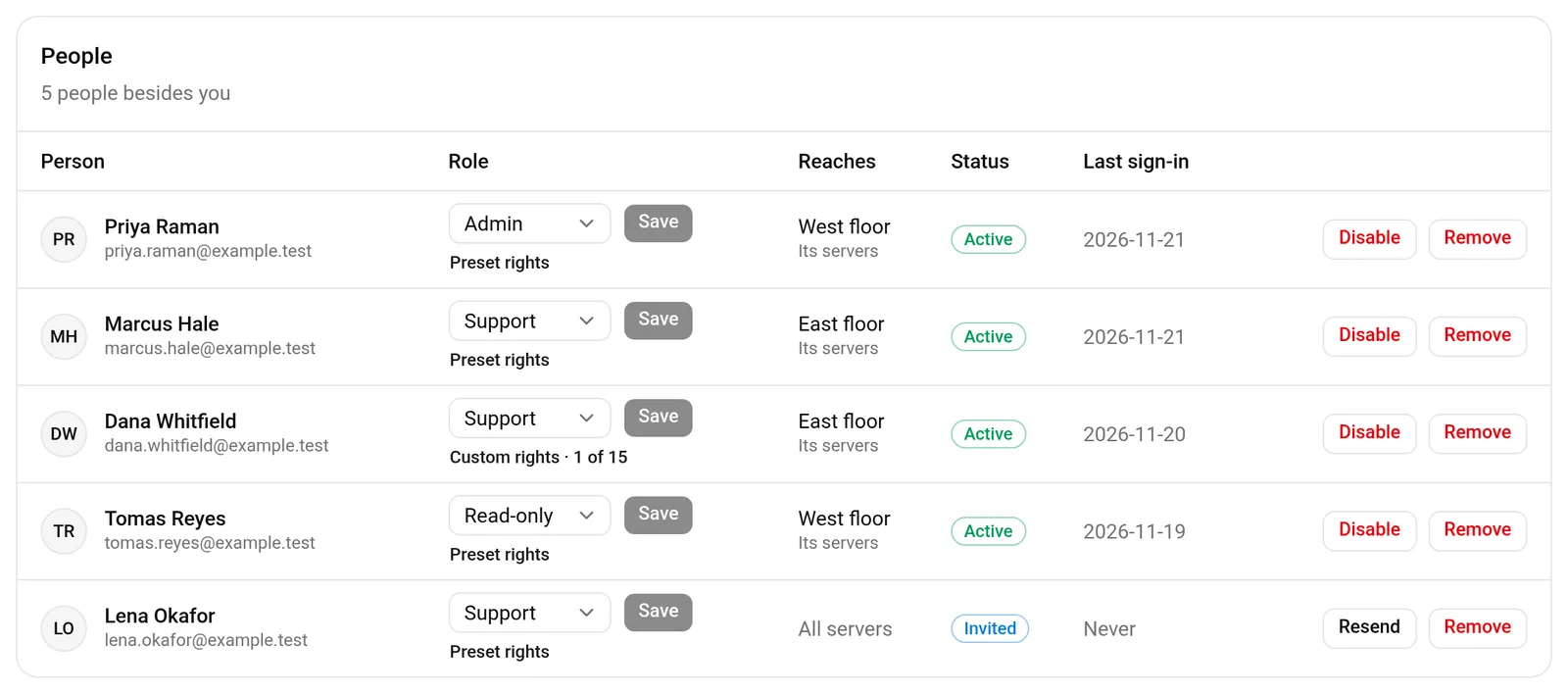
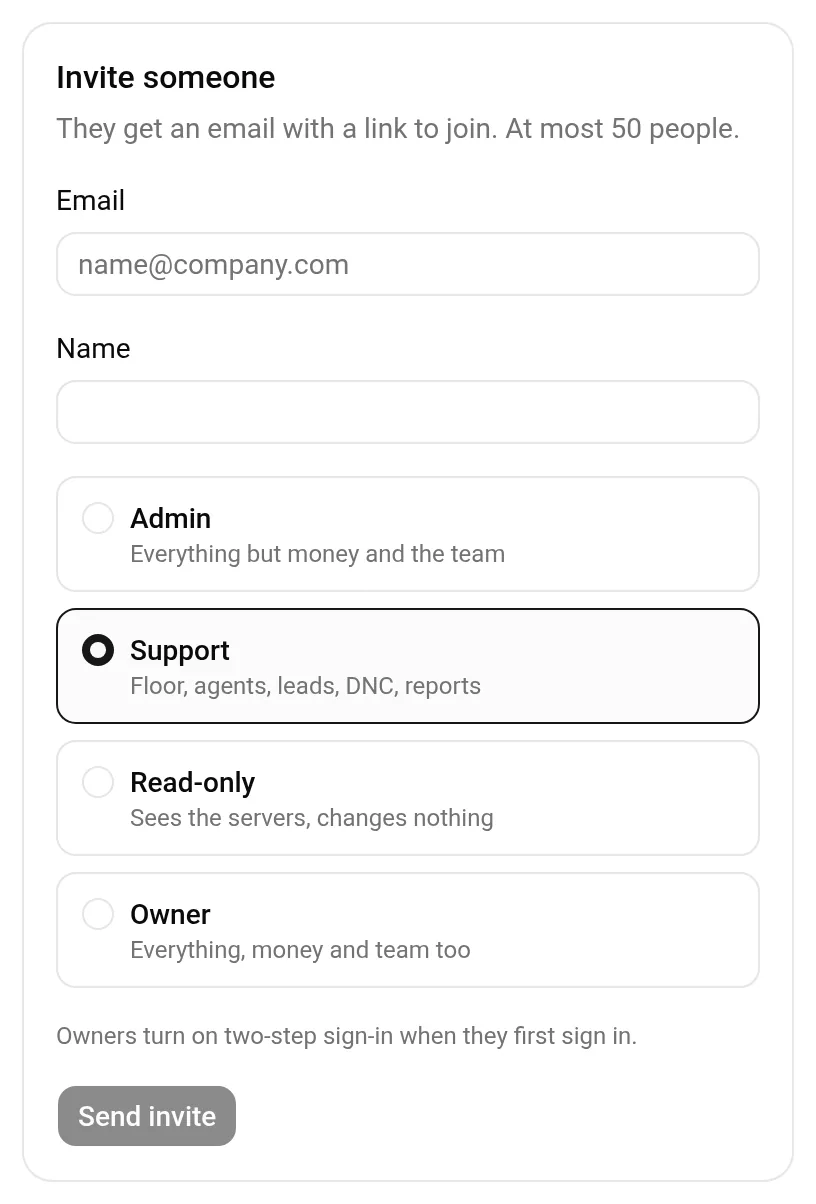
Press Invite someone, type their email and pick a role. They get an email with a link to join and set a password of their own. An account can have up to 50 people.
2. Pick a role
There are four roles. Each is a set of rights, so you rarely need to tick anything by hand.
| Role | What it opens |
|---|---|
| Owner | Everything, money and the team too |
| Admin | Everything but money, the team and the account keys |
| Support | The floor, agents, leads, do-not-call lists and reports |
| Read-only | Sees the servers, changes nothing |
Support is the usual choice for a supervisor. It never orders or deletes servers, and never touches carriers or settings.
Which role for which job
| Job | Role | What it gets, and what it never gets |
|---|---|---|
| Floor supervisor | Support | Runs the floor, listens to and downloads recordings, writes to support. Never orders, deletes or configures a server |
| Quality checker | Read-only | Sees the servers and listens to recordings. Changes nothing |
| Technical lead | Admin | Also orders, configures, moves and deletes servers, and sets up AI agents. Never pays, manages the team or the API keys |
Admin can order and delete servers within the account's balance and cap, so keep it for the people who look after the servers.
3. Tick rights one by one
Sometimes a role is close but not quite right. Open a person's rights and tick exactly what they may do. The rights come in groups:
- Servers: order, destroy, configure, move or migrate.
- Floor: run the floor, which covers agents, campaigns, leads, do-not-call lists and reports.
- Recordings: listen, and download, as two separate rights.
- Support: open and answer support threads.
- Billing: see billing, and pay and top up, as two separate rights.
- Account: manage the team, API keys, the Leads API, agreements, and AI agents.
A common example is a supervisor who may run the floor and listen to recordings, but not download them and not delete a server.
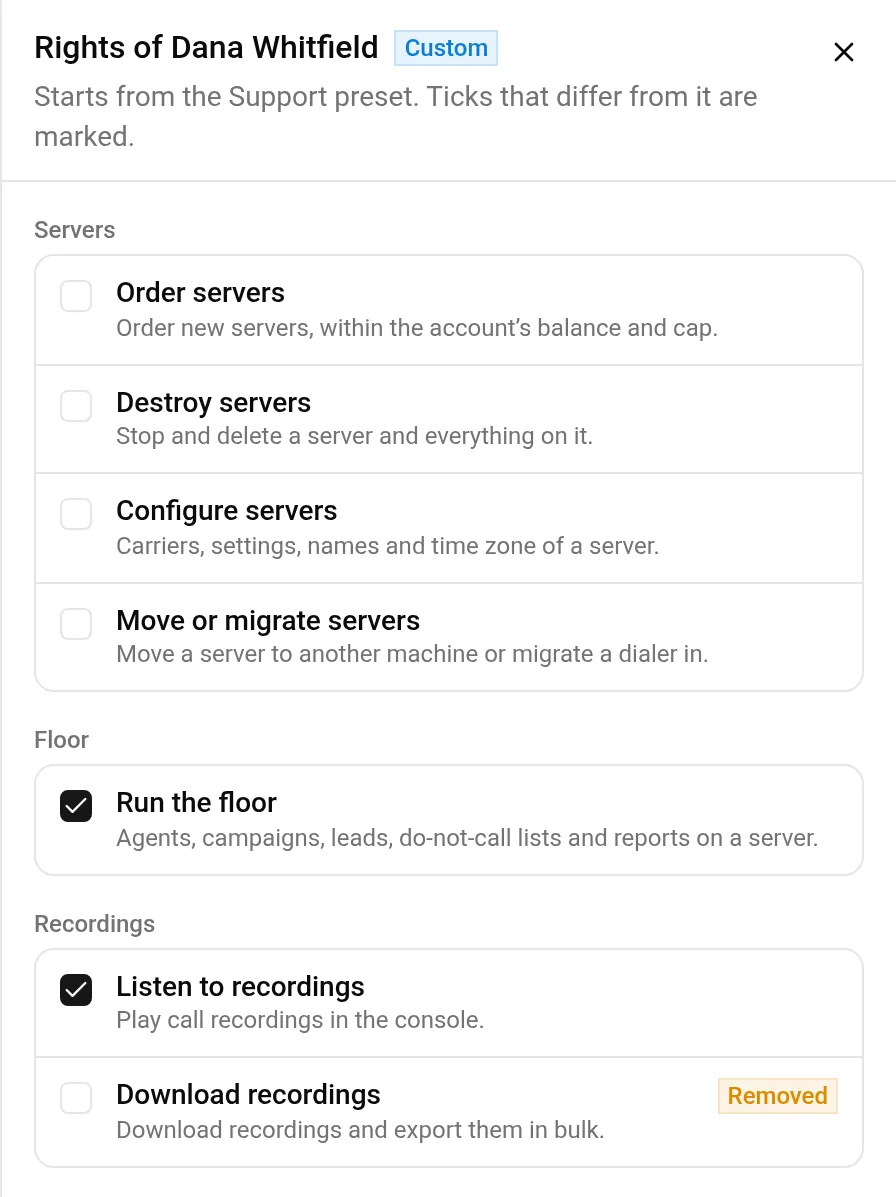
Press Save rights. To go back to what the role gives, choose the preset again.
4. Limit people to some servers
On the Teams tab, make a team, add its servers, then its members. A team's members reach only its servers. Someone in no team reaches every server.
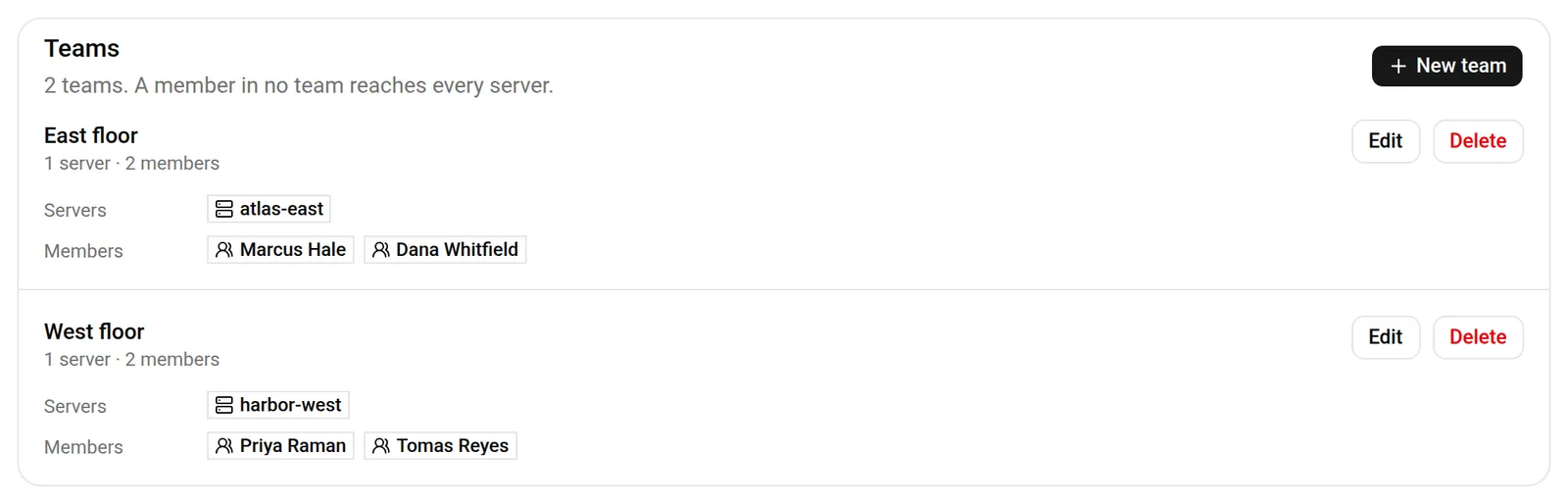
Before you save a change to a team or delete one, the console shows who it affects, for example who would be left in no team. No server and no login is deleted when a team goes.
Two-step sign-in
You choose who must turn on two-step sign-in: everyone, only the people who can pay, manage the team or keys, use the Leads API or sign agreements, or nobody. For your own login, turn it on first.
Removing someone
When a person leaves, press Disable to stop their sign-in while keeping their record, or Remove to take them off the account. Their own password goes with them, and nobody else has to change theirs.
The four steps again
| Step | Where | What you decide |
|---|---|---|
| Invite | Team, People | The email and a role |
| Role | The invite form | Owner, admin, support or read-only |
| Rights | A person's rights | Exactly what they may do |
| Teams | Team, Teams | Which servers a group reaches |
For why a shared login is worth getting rid of, read one shared dialer login: what it costs.
- Start free for 7 days and invite your team.
- Already signed up? Order a server, then invite your team from Account, then Team.
VICIdial is a trademark of its owner. Trustane is an independent hosting provider.
Sources
- Roles and what each one opens
- The rights you can tick one by one
- The rights sheet for one person
- Teams and their servers
Managed VICIdial hosting