VICIdial admin tasks: 12 jobs and where each lives in our console
Twelve everyday VICIdial admin tasks, from ordering a server to root access, with the console screen that does each one and a link to its step-by-step guide.

To the point
A VICIdial admin repeats the same dozen jobs: get a server, connect a carrier, add people, steer calls, watch the floor, and fix what went wrong. This page lists twelve of them. For each one it names the screen in the Trustane console that does it and links to the guide with every step.
VICIdial's own admin pages stay on the server. The console sits beside them.
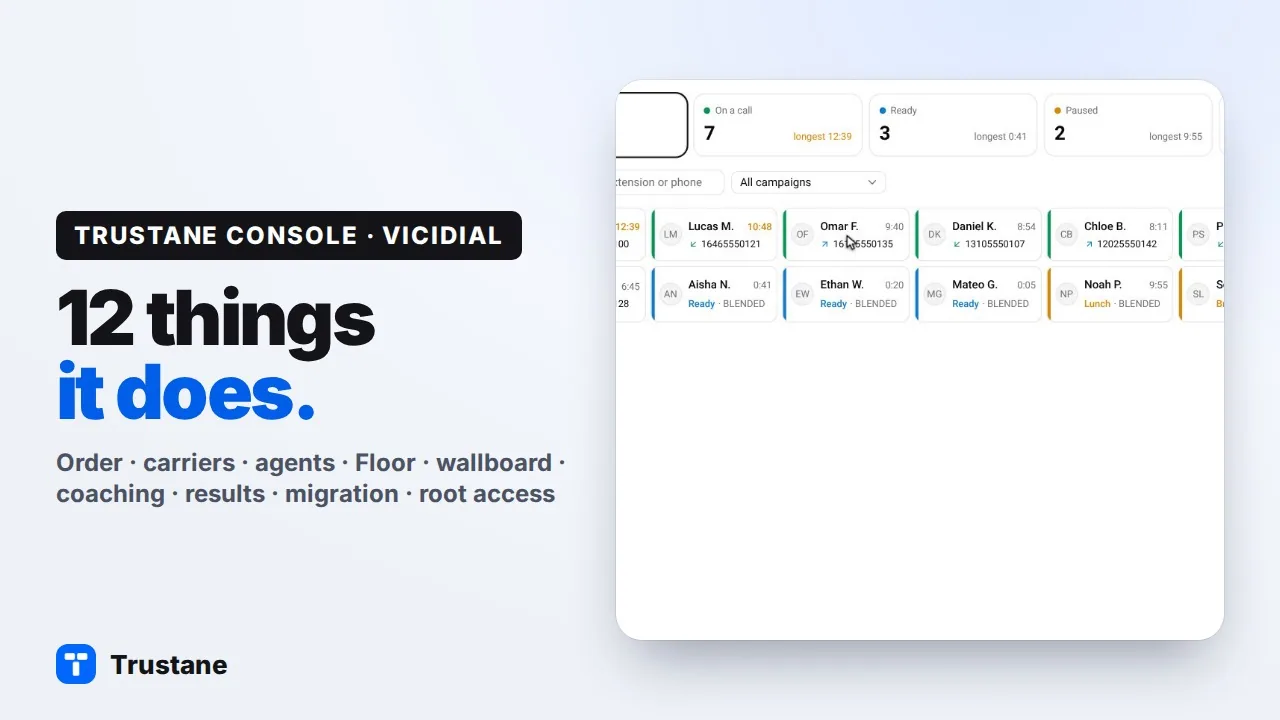
Plays from YouTube when you press Play. Google's privacy policy applies.
The pictures and the video come from our demo account. Names, numbers and addresses in them are made up.
Getting started
1. Get a server
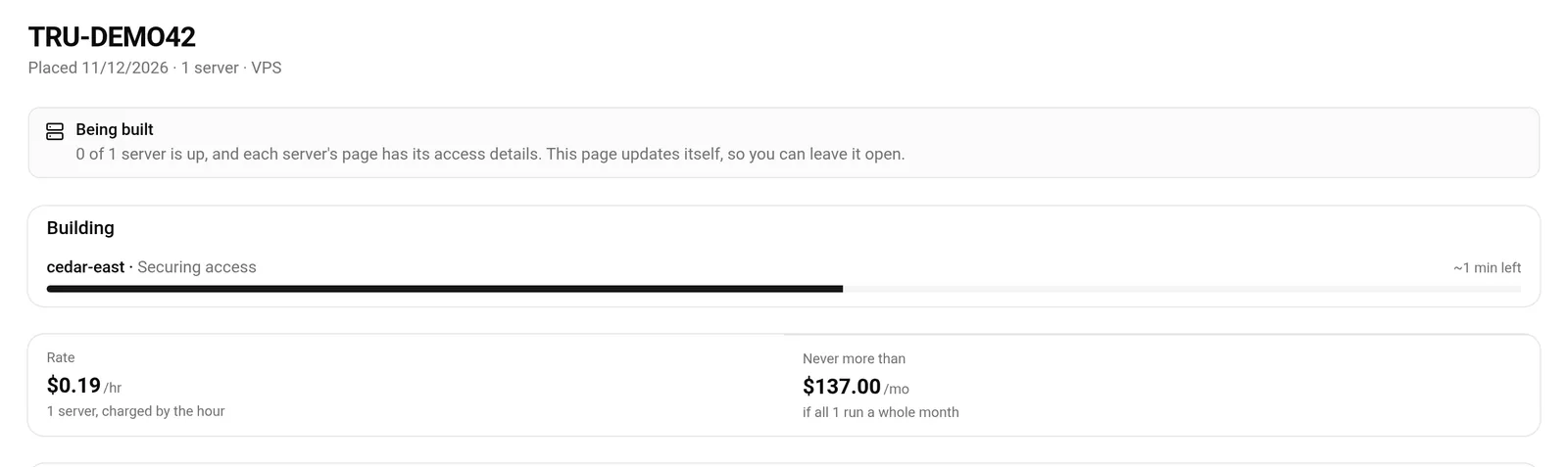
New order asks three things: a VPS or dedicated cores, a city, and a size. Every size carries two prices, the hourly one and the monthly ceiling. After you place the order, its page lists the build stage by stage until the server is up.
Guide: Order a server and watch it build.
2. Connect a carrier
Carriers → Add carrier is a four-step form: provider, connection, calls, review. You choose Twilio, Telnyx, RingCentral or any other SIP provider, and you never open the dial plan yourself. Before you save, the review step prints the exact entry VICIdial will receive, with the password hidden.
Guide: Add a SIP trunk in 4 steps.
3. Add your agents
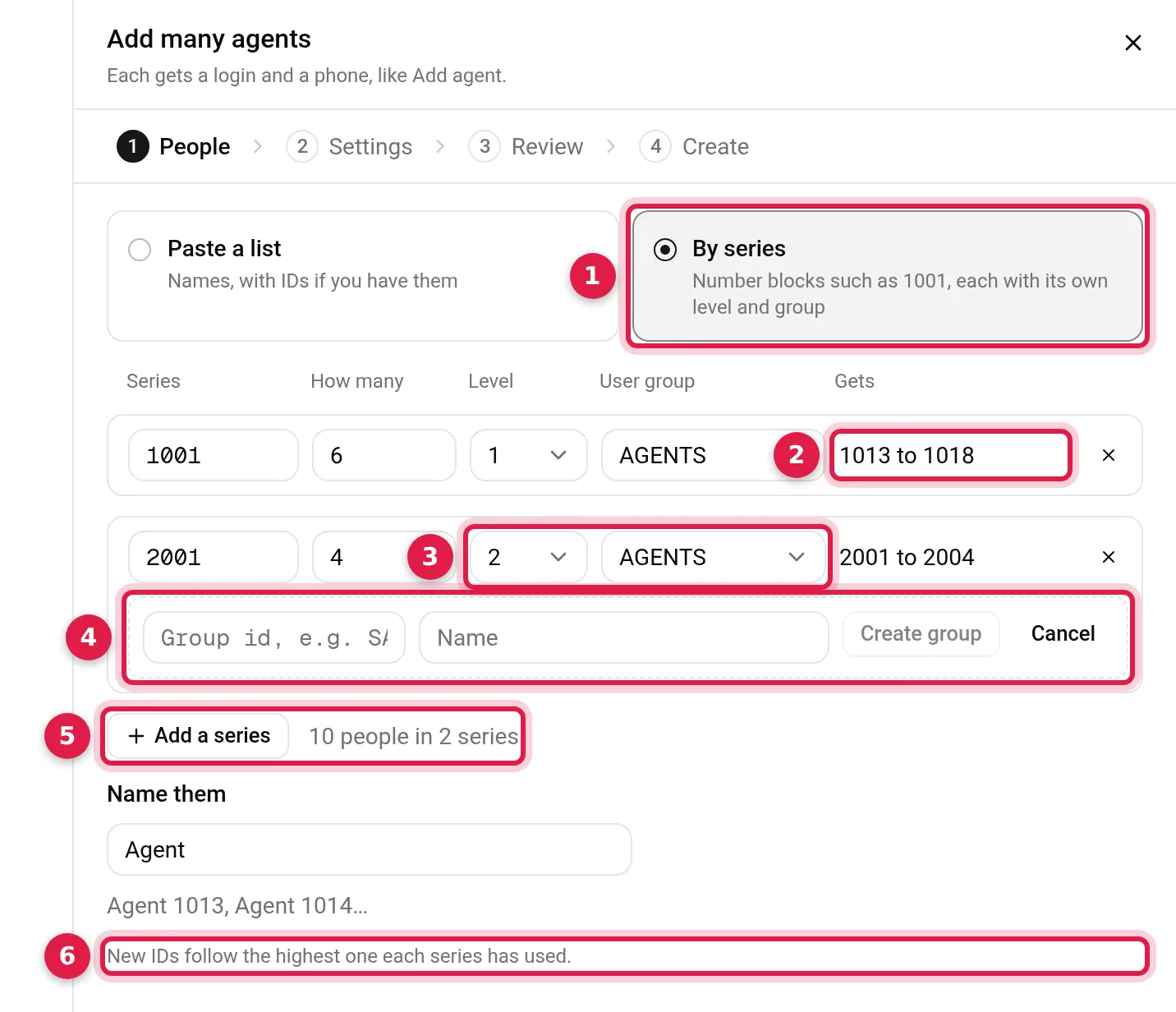
People → Add many creates as many as 100 agents in one pass. Paste names from a spreadsheet or type a number series. Each agent comes out with a VICIdial login and a phone. When it finishes you get login cards to copy, download or print.
Guide: Add up to 100 agents in one go.
Steering calls
4. Change who takes which queue
On the Floor, right-click an agent and pick Move to queues. Tick the in-groups that agent should answer and apply. It works on the session they are in now.
Guide: Assign in-groups to agents from the floor.
5. Build a Press-1 campaign
One sheet covers the whole campaign: the caller ID, the message people hear, and where each key sends the call. A key can lead to a queue, to an outside number, or to another server by its IP address.
Guide: Build a Press-1 campaign in one sheet.
6. Block a caller
When one number keeps ringing your queue, right-click it on the Floor and choose Block this caller. The console tells you what the block will do before it writes anything. Numbers → Blocked callers keeps the list and has the Unblock button.
Guide: Block a phone number, inbound and DNC.
Watching the floor
7. Put a wallboard on the TV
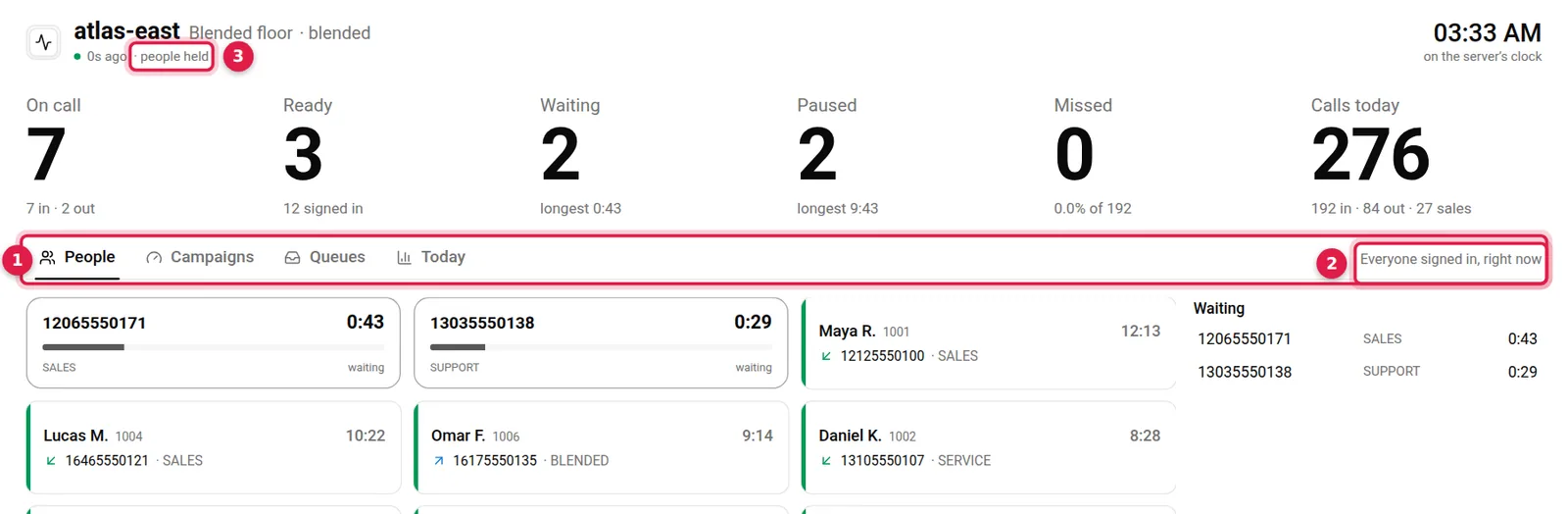
Each server has a wallboard. Six figures stay at the top, and the screens under them rotate through people, campaigns, queues and today. If you run several servers, one wall can show them all, a row per server.
Guide: A wallboard your floor can read.
8. Coach a live call
Right-click an agent who is on a call and you get Listen, Whisper and Barge. Listening is silent, a whisper reaches only the agent, and a barge puts you on the line with everyone. Your own phone rings to join you in.
First let your agents know that a supervisor can monitor their calls. Callers should hear, as the call begins, that it may be monitored or recorded. Notice or consent is required in some places, so check the rules that apply where you are and where your callers are.
Guide: Listen, whisper and barge from the live floor.
9. Read today's numbers
Today by hour on the Floor counts the day's calls in, calls out, missed calls and the dropped share, on the server's clock. Queues today breaks the same count down per queue.
Guide: Missed calls today, by hour and by queue.
When something needs a closer look
10. Find what happened to a call
Results → Calls opens any call as a timeline: when it arrived, how long it waited, who answered, each transfer, and who hung up. The recordings VICIdial made of it are listed on the same sheet.
Guide: Find what happened to any call.
11. Move an existing server
Migrate has four screens: connect, review, move and done. The review reads your old server without changing it and shows what will come across. The last screen compares each main table's count on the old server with its count on the new one.
Two limits to know today: the move copies recordings stored as MP3 files, and you add your carriers again on the new server.
Guide: Migrate a server to a new host in four steps.
12. Get root, and see who can reach the server
Terminal opens the server's shell in your browser, after your account password and a code from your authenticator app. Every session is recorded and can be replayed for 30 days. Firewall lists who is signed in and from which address. You can always allow an address, such as your office, or block one.
Guides: Your server's terminal in the browser and Allow your office IP and block an address.
Try it
A server is free for 7 days, with no top-up. You confirm your email and a phone code, and the server is yours to test. Order a server to begin.
If you are choosing a host, the VICIdial hosting checklist has the questions to ask any of them, us included.
VICIdial is a trademark of its owner. Trustane is an independent hosting provider.
Sources
- Add many agents and its limit
- Terminal session rules
- The firewall lists
- The Floor's right-click actions
- Blocked callers
- The add carrier steps
- The move screens
- The free trial's length
Managed VICIdial hosting